
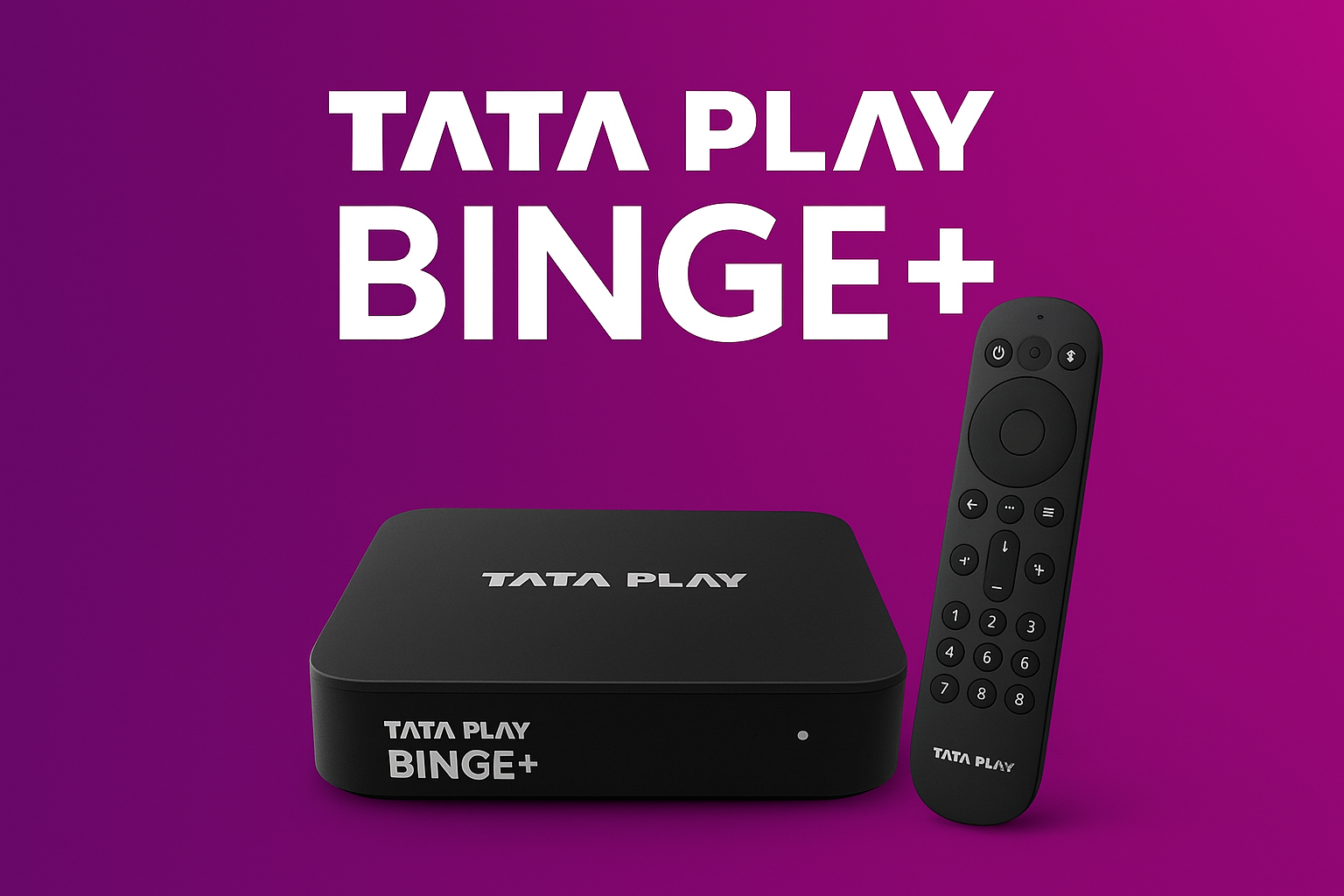
In today’s fast-paced world, home entertainment has evolved far beyond traditional cable TV. With the rise of smart streaming devices, viewers now demand convenience, variety, and high-quality content at their fingertips. Tata Binge+ is one such Android-based set-top box that has quickly become a favorite among entertainment enthusiasts. Offering seamless streaming, access to popular apps, and smart features, it promises to transform your TV-watching experience. In this guide, we’ll explore how to make the most of Tata Play Binge Plus to maximize your entertainment.
Key Features of Tata Binge+
Tata Play Binge Plus stands out for its feature-rich interface and smooth performance. Here’s what makes it special:
-
Streaming Apps: Access top apps like Disney Hotstar, Zee5, SonyLIV, and more, all in one place.
-
4K and HD Streaming: Enjoy crisp visuals with support for Full HD and 4K content on compatible TVs.
-
Personalized Recommendations: The device learns your viewing habits and suggests content tailored to your preferences.
-
Multi-User Profiles: Create individual profiles for each family member, so everyone can have a personalized experience.
-
Voice Search: The remote comes with a voice assistant that makes searching for shows, movies, or apps faster and easier.
These features ensure that Tata Play Binge Plus is not just a TV box, but a complete entertainment hub.
Customizing Your Viewing Experience
Customization is key to enhancing your entertainment experience. Tata Play Binge Plus offers several options:
-
Favorite Channels and Apps: Pin frequently watched apps and channels on the home screen for quick access.
-
Picture and Sound Settings: Adjust resolution, color, brightness, and audio settings to match your viewing environment.
-
Parental Controls: Set restrictions on certain content to ensure a family-friendly entertainment environment.
-
Night Mode and Sleep Timer: Adjust settings for late-night viewing without straining your eyes.
Maximizing Entertainment with Add-On Features
Beyond streaming TV shows and movies, Tata Play Binge Plus offers additional features that enhance entertainment:
-
Gaming Options: Install popular Android games and enjoy casual gaming on your TV.
-
Casting from Mobile Devices: Stream videos, photos, or music from your smartphone or tablet directly to the TV screen.
-
Music and YouTube: Use apps like Spotify, Gaana, or YouTube to enjoy music videos, tutorials, and more.
-
Data Management: Adjust streaming quality settings to save data while still enjoying high-quality visuals.
These add-on features make Tata Play Binge Plus more than just a set-top box—it becomes an all-in-one entertainment center for the whole family.
Advantage of Google Assistant, apps and casting
-
Take Advantage of Google Assistant: Use the voice remote to issue commands and control your TV effortlessly.
-
Easy App Access: Press the mic button and say commands like “open YouTube” to launch apps quickly.
-
Quick Content Search: Speak commands such as “play action movies” or “resume Money Heist” to save time navigating with arrow keys.
-
Get Instant Answers: Ask Google Assistant questions about weather, sports scores, or YouTube searches without needing your phone.
-
Seamless Casting: Easily cast videos, music, or photos from your smartphone or tablet directly to your TV screen.
Recording, restart and multi‑screen flexibility
-
Recording Flexibility: Subscribe to Tata Play’s recording storage plans to save selected live channels and watch later, ensuring you never miss important episodes or sports events.
-
Restart TV Feature: Jump back to the beginning of a currently running programme with Restart TV (where available), providing near-on-demand flexibility on linear channels.
-
Multi-Screen Access: Use Binge subscriptions across devices like mobiles, laptops, smart TVs, and Fire Sticks via the Binge app.
-
Simultaneous Viewing: Family members can watch OTT content on one device while another uses the Binge Plus box for live channels, maximizing subscription value.
Maintenance and Updates
To ensure uninterrupted entertainment, proper maintenance and regular updates are essential:
-
Software Updates: Keep your device updated with the latest firmware to access new features and improved performance.
-
Device Cleaning: Dust and clean the set-top box and remote regularly to maintain optimal functioning.
-
Troubleshooting: If you encounter buffering or connectivity issues, restart the device, check Wi-Fi strength, or clear app cache for smoother performance.
A well-maintained Tata Play Binge Plus guarantees long-lasting, hassle-free entertainment.
https://digital24hour.com/category/marketing/
How to Set Up Tata Play Binge Plus?
The first step to maximizing your entertainment is getting started correctly. When you unbox Tata Play Binge Plus, you’ll find the set-top box, a sleek remote, HDMI cable, power adapter, and a user manual. The setup process is simple and user-friendly.
-
Connect to TV: Use the HDMI cable to connect the device to your TV.
-
Power On: Plug the device into a power source and switch it on.
-
Internet Connectivity: Connect to Wi-Fi or use an Ethernet cable for stable internet streaming.
-
Initial Setup: Follow the on-screen instructions to set language preferences, sign in to your Tata Play account, and explore the interface.
For the best streaming experience, ensure your device is placed in an area with strong Wi-Fi signals and minimal obstructions.
Conclusion
Tata Play Binge Plus is more than a simple Android set-top box; it’s a gateway to a smarter, more enjoyable entertainment experience. From streaming your favorite shows and movies in HD to exploring gaming, music, and app-based content, it offers everything a modern viewer could ask for. By setting it up correctly, customizing your viewing experience, exploring key features, and maintaining your device, you can truly maximize your entertainment at home.
 apptunix0
  Tasmiya
  corewaveindia