
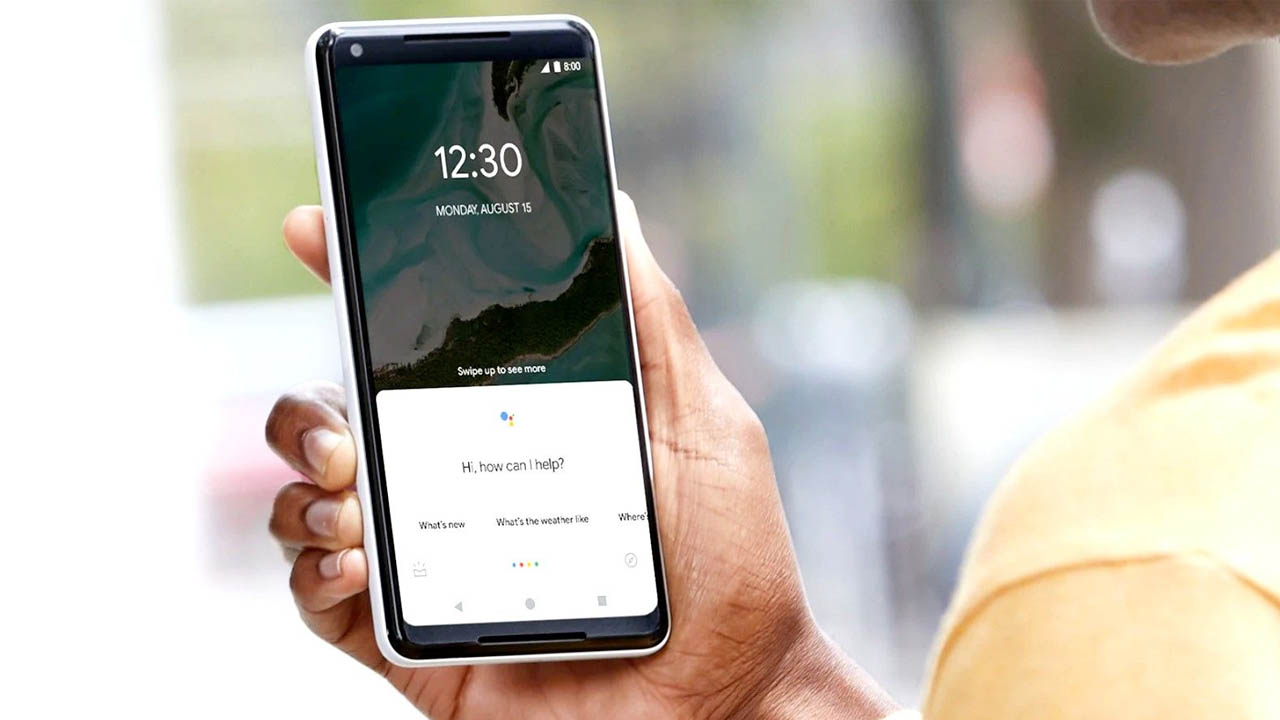
Google Assistant is one of the most powerful AI tools available on Android and iOS. It can answer questions, open apps, automate daily routines, control smart devices, and make your phone experience faster and easier. But most people only use basic commands like setting alarms or asking the weather.
In this guide, you’ll learn advanced Google Assistant tricks, hidden features, and pro-level tips that make you more productive every day.
1. Use Voice Shortcuts for Faster Actions
Instead of navigating menus, create custom shortcuts that instantly perform tasks.
Examples:
“Hey Google, open WhatsApp camera”
“Hey Google, call my boss”
“Hey Google, start my workout playlist”
You can customize shortcuts in:
Assistant Settings → Shortcuts
2. Create Routines to Automate Your Day
Routines let you run multiple actions with a single command.
Examples:
Morning Routine:
Reads your calendar
Tells weather
Plays news
Adjusts smart lights
Night Routine:
Turns off Wi-Fi
Enables silent mode
Sets alarm
Dims smart lights
Set up in:
Assistant Settings → Routines
3. Control Your Smart Home Devices
If you have smart lights, AC, plugs, or speakers, Google Assistant can control them with simple commands.
Examples:
“Hey Google, turn off the bedroom lights”
“Hey Google, switch on the AC at 24 degrees”
“Hey Google, lock the door” (with supported smart locks)
All devices can be linked from:
Home App → Add → Set up device
4. Use Voice Dictation for Faster Typing
Google Assistant provides accurate voice typing for long notes or messages.
Use commands like:
“Hey Google, take a note”
“Hey Google, send a message to Rahul saying I’ll be late”
“Hey Google, write an email to my manager”
Perfect for productivity and hands-free usage.
5. Translate Languages Instantly with Interpreter Mode
Google Assistant has a built-in real-time translator.
Say:
“Hey Google, be my English to Hindi interpreter”
It will translate conversations both ways, ideal for travel or communication with non-native speakers.
6. Use Google Assistant for Navigation and Travel
You can ask navigation or location-based queries without touching your phone.
Examples:
“Hey Google, navigate to nearest petrol pump”
“Hey Google, how long to reach home?”
“Hey Google, check traffic on my route”
It works seamlessly with Google Maps.
7. Get Personal Reminders and Location-Based Alerts
Smart reminders make your day stress-free.
Examples:
“Hey Google, remind me to pay rent on the 1st of every month”
“Hey Google, remind me to buy milk when I reach the supermarket”
“Hey Google, remind me to call mom at 7 PM”
Google Assistant will notify you at the perfect time.
8. Use Voice Commands to Control Phone Settings
No need to open menus.
Try these commands:
“Hey Google, turn on Wi-Fi”
“Hey Google, increase brightness”
“Hey Google, turn on battery saver”
“Hey Google, take a screenshot”
This makes your phone truly hands-free.
9. Search Anything Faster with Lens + Assistant
Google Lens is built into Assistant. You can point your camera and ask:
“What plant is this?”
“Find this product online”
“Translate this text”
“Copy text from this book”
It instantly recognizes objects, text, and products.
10. Use Google Assistant for Entertainment and Media
Control YouTube, music apps, and smart TVs.
Examples:
“Hey Google, play relaxing music on YouTube”
“Hey Google, play Stranger Things on Netflix TV”
“Hey Google, volume up on living room TV”
Great for multi-device setups.
11. Broadcast Messages Across Devices
If you have multiple smart speakers:
Say:
“Hey Google, broadcast dinner is ready”
The message will play on all connected devices.
Useful for families or offices.
12. Use Assistant for Productivity and Work
Commands that help in work and study:
“Hey Google, create a meeting for tomorrow at 10 AM”
“Hey Google, add eggs to my shopping list”
“Hey Google, start a timer for 30 minutes”
“Hey Google, convert 100 dollars to rupees”
It reduces manual effort.
13. Set Up Family and Shared Tasks
You can create shared lists and reminders with family members using Google Home.
Examples:
“Hey Google, add bread to the shared grocery list”
“Hey Google, remind everyone to leave at 6 PM”
Helps in managing household tasks.
14. Use Google Assistant Offline
You can use many commands even without the internet.
Offline commands include:
Opening apps
Adjusting settings
Calling contacts
Playing offline music
Setting alarms and timers
Enable offline voice typing in:
Settings → Voice → Offline Speech Recognition
15. Customize Google Assistant to Work Your Way
You can personalize:
Voice (male/female)
Language
News sources
Default music app
Default navigation app
Your home and work address
Nickname
Explore in:
Assistant Settings
Conclusion
Google Assistant is more than a voice assistant. It’s a powerful automation and AI tool that can save time, improve productivity, and simplify everyday tasks. By using advanced routines, voice controls, smart home commands, translation features, and shortcuts, you can unlock its full potential and use it like a true pro.
Google Assistant is more than a voice assistant. It’s a powerful automation and AI tool that can save time, improve productivity,
Also Read:- What Are the Signs of a Good Result from Under Eye Fillers Treatment in Dubai
 webguruz
  mastersoftware
  Sulina1